> ## Documentation Index
> Fetch the complete documentation index at: https://docs.witting.ai/llms.txt
> Use this file to discover all available pages before exploring further.
# Meeting Results
> How to review interview results in Vocalis. View insights with charts and scores, and replay the recording with full transcript and audio/video.
After a meeting completes, Vocalis processes the conversation and makes the results available in the dashboard. You get two things: **Insights** and a **Recording**.
## Opening meeting results
You can reach the results page from three places:
* **Create Meeting** — After creating a batch meeting, click a completed row in the batch meeting table.
* **All Meetings** — Open the Meetings list and click any meeting with a **Completed** badge.
* **Calendar** — Click a completed meeting on the calendar view.
The results page shows the meeting title, date, time, duration, participant count, and a **Completed** status badge. Two actions are available in the top-right corner:
* **Regenerate Insight** — Re-run insight extraction on the existing conversation. Useful when you update your Actor's insights after a meeting has already completed — regenerating applies the new configuration without needing another interview.
* **Export PDF** — Download the full results as a PDF report.
Below the header, two tabs let you switch between **Insights** and **Recording**.
## Insights
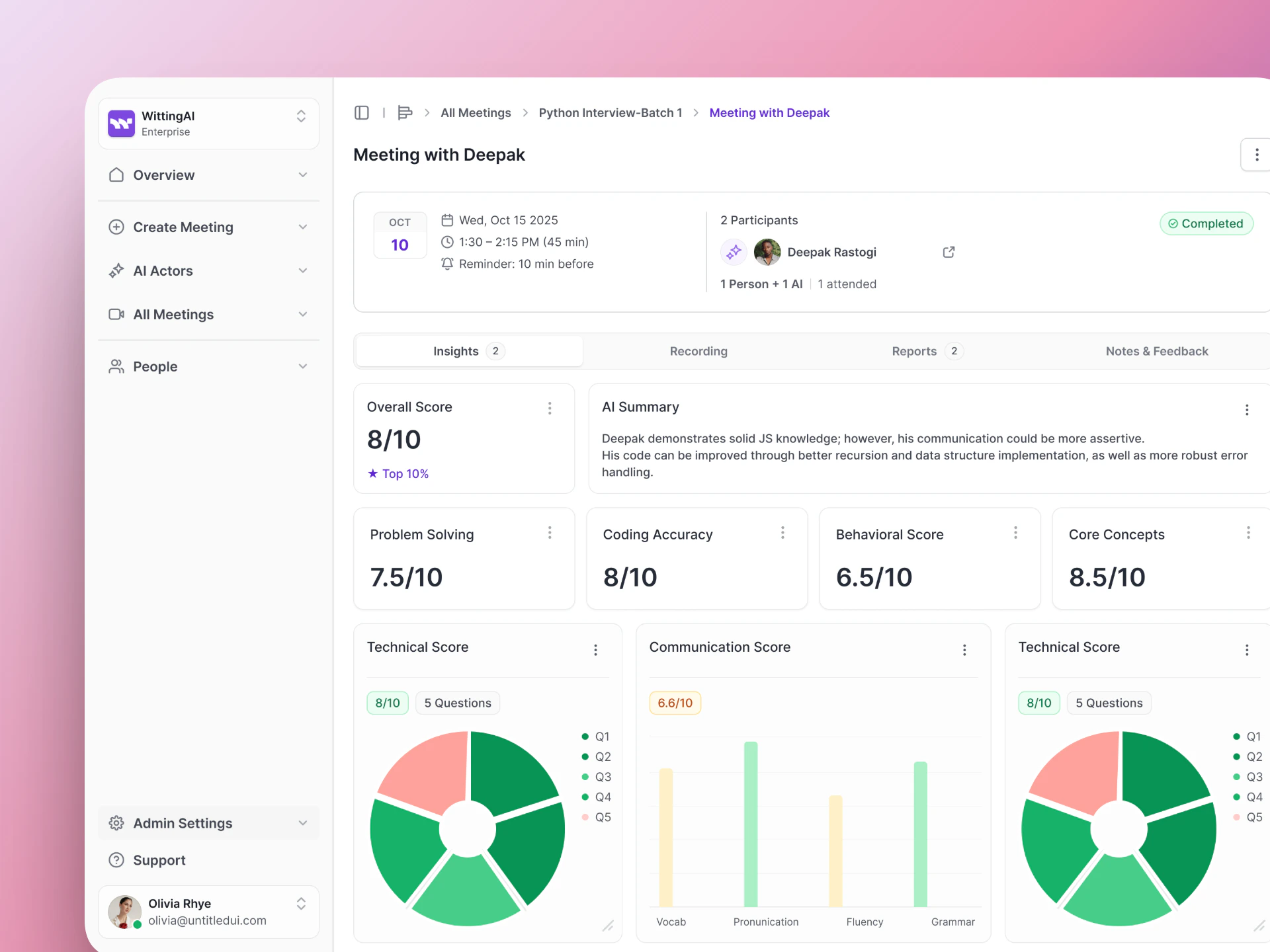 Insights are the structured data points you defined when setting up the AI Actor. After the interview, each insight is populated with a value extracted from the conversation. Depending on the insight type, results are displayed as:
| Type | How it appears |
| -------------- | --------------------------------------------------------------------------------------------------------------- |
| **Score** | A card with a numeric rating (e.g., "Technical Depth Score — 8/10"). |
| **Text** | A summary card with a heading and paragraph (e.g., "Executive Interview Summary", "Risk & Skill Gaps Summary"). |
| **Bar Chart** | A visual comparison across categories. |
| **Line Chart** | A trend or progression over the course of the conversation. |
| **Pie Chart** | A distribution or breakdown. |
Insights give you structured, comparable data across all candidates — without reading the full transcript.
## Recording
Insights are the structured data points you defined when setting up the AI Actor. After the interview, each insight is populated with a value extracted from the conversation. Depending on the insight type, results are displayed as:
| Type | How it appears |
| -------------- | --------------------------------------------------------------------------------------------------------------- |
| **Score** | A card with a numeric rating (e.g., "Technical Depth Score — 8/10"). |
| **Text** | A summary card with a heading and paragraph (e.g., "Executive Interview Summary", "Risk & Skill Gaps Summary"). |
| **Bar Chart** | A visual comparison across categories. |
| **Line Chart** | A trend or progression over the course of the conversation. |
| **Pie Chart** | A distribution or breakdown. |
Insights give you structured, comparable data across all candidates — without reading the full transcript.
## Recording
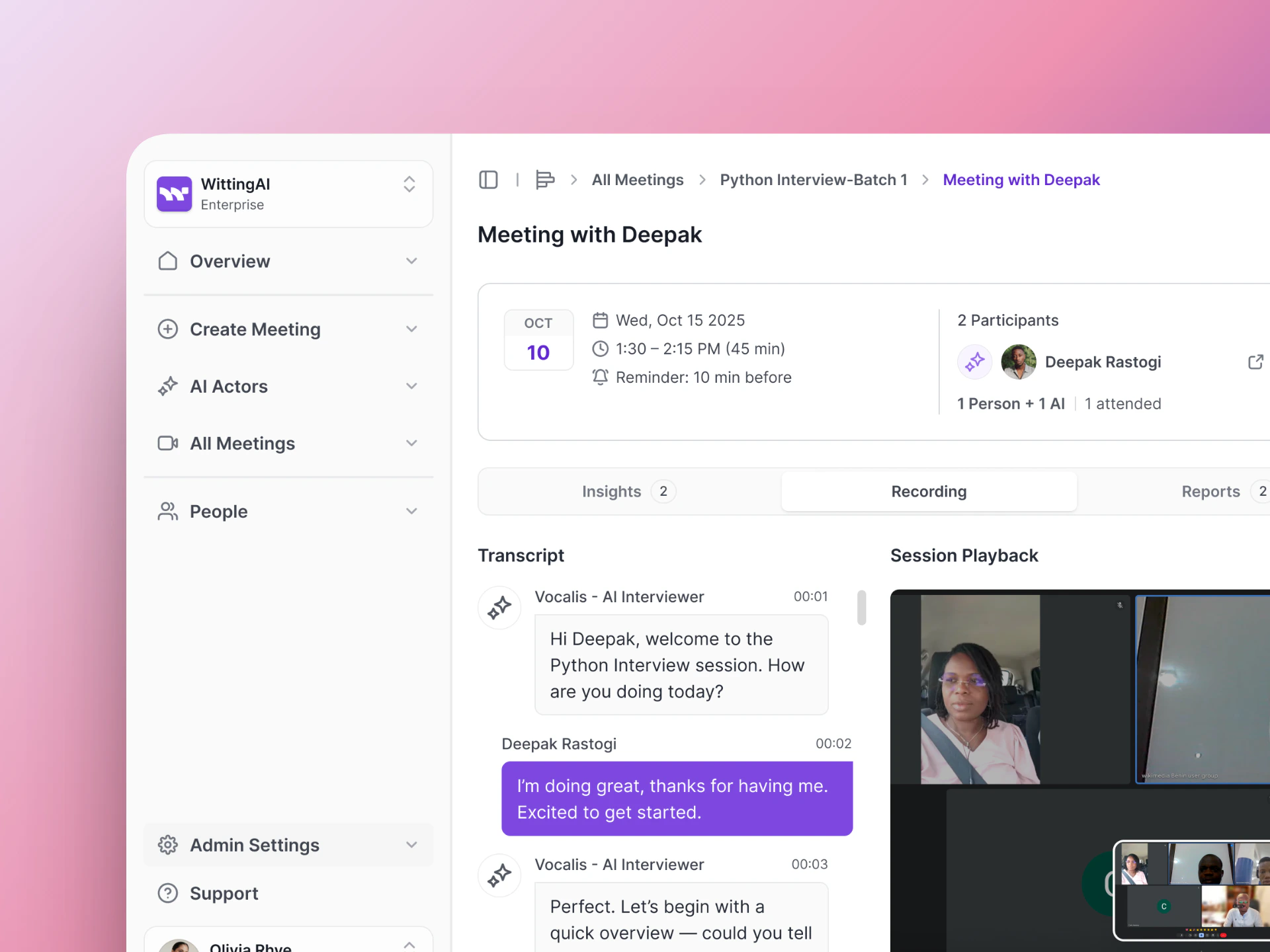 The Recording tab is split into two panels:
* **Transcript** — The complete conversation, word for word. Each message is labeled with the speaker name and a timestamp.
* **Session Playback** — The video or audio recording of the call. For Google Meet interviews, this includes video. For phone calls, this is audio only.
Use the recording to verify insights, hear the candidate's tone and delivery, or share the interview with your team.
## Using results to improve
If insights are not capturing the right information:
1. Check the **Purpose** — Is the AI Actor asking about the topics that map to your insights?
2. Check the **Insight descriptions** — Are the purpose descriptions specific enough for the AI to extract the right values?
3. Run another [test](/vocalis/how-to/test-actor) with the updated configuration.
## Next steps
Adjust what data gets extracted.
See hiring-specific workflows.
The Recording tab is split into two panels:
* **Transcript** — The complete conversation, word for word. Each message is labeled with the speaker name and a timestamp.
* **Session Playback** — The video or audio recording of the call. For Google Meet interviews, this includes video. For phone calls, this is audio only.
Use the recording to verify insights, hear the candidate's tone and delivery, or share the interview with your team.
## Using results to improve
If insights are not capturing the right information:
1. Check the **Purpose** — Is the AI Actor asking about the topics that map to your insights?
2. Check the **Insight descriptions** — Are the purpose descriptions specific enough for the AI to extract the right values?
3. Run another [test](/vocalis/how-to/test-actor) with the updated configuration.
## Next steps
Adjust what data gets extracted.
See hiring-specific workflows.