> ## Documentation Index
> Fetch the complete documentation index at: https://docs.witting.ai/llms.txt
> Use this file to discover all available pages before exploring further.
# Schedule Meetings
> How to schedule an AI-conducted interview in Vocalis. Choose an Actor, pick a variant, configure the meeting, add participants, review, and send invites.
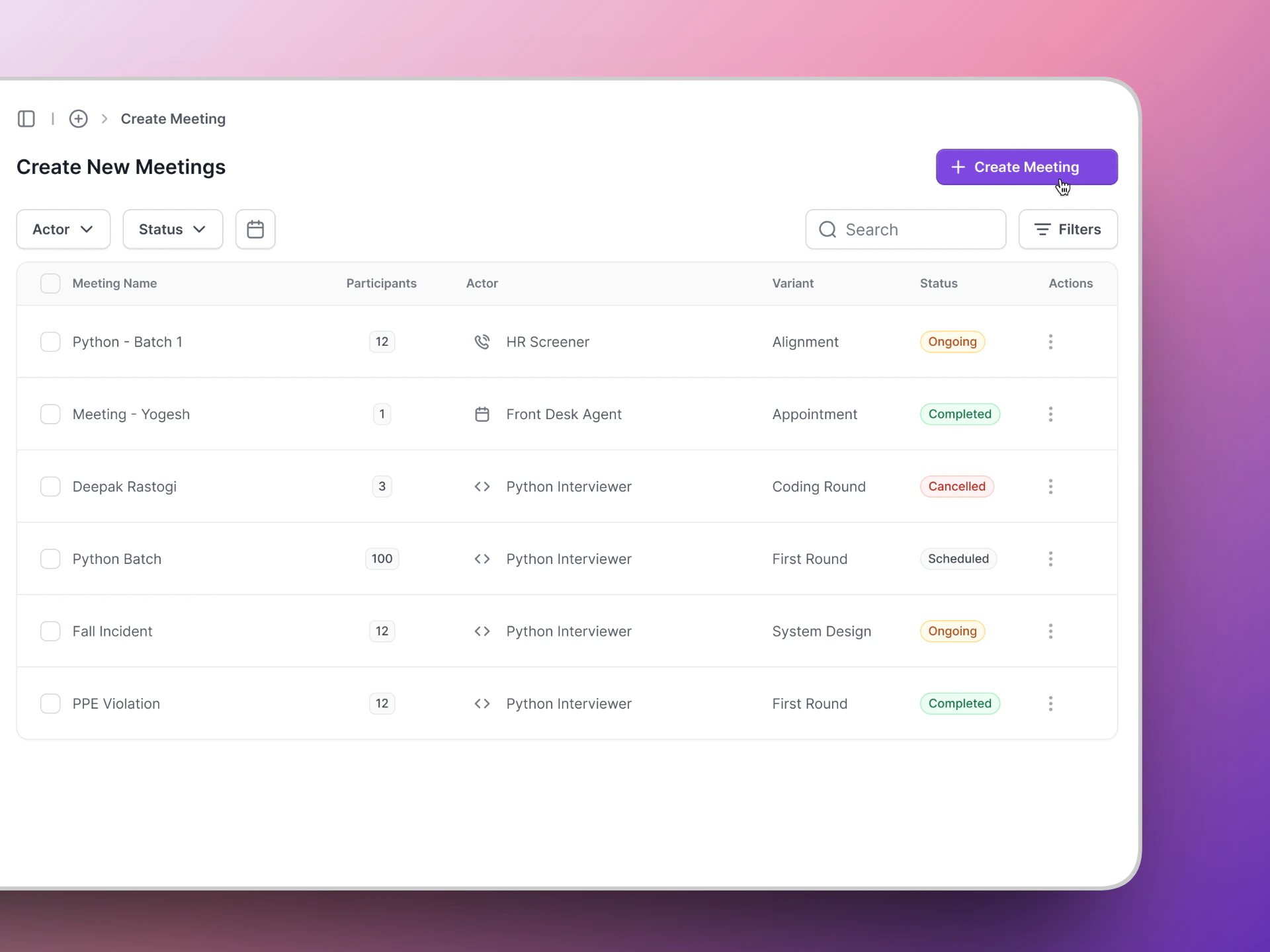
Once you have an AI Actor set up, you can schedule meetings where it conducts interviews with your candidates. Click the **Create Meeting** button to start the wizard.
 ## The meeting wizard
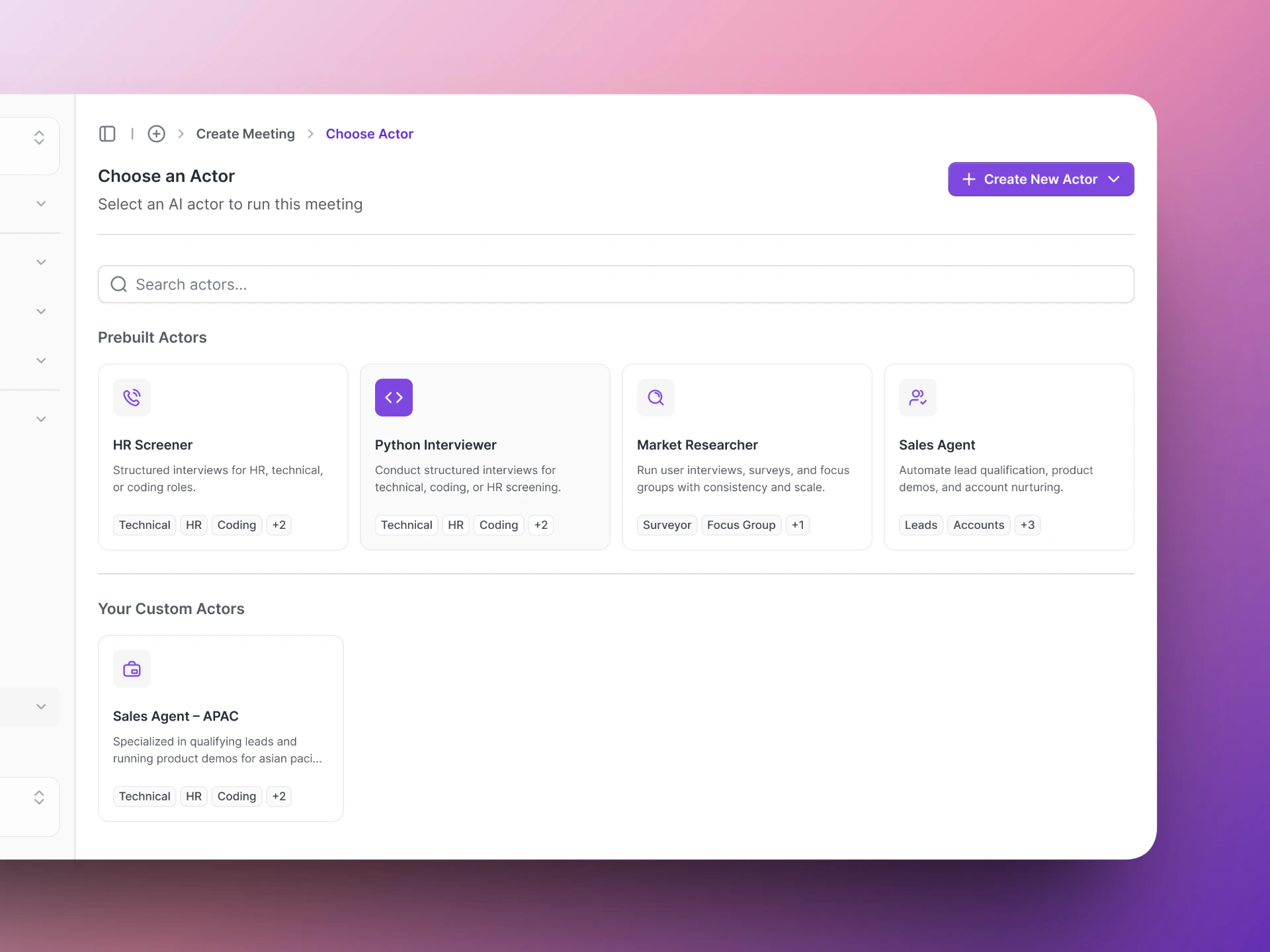
Select the AI Actor that will run this interview.
## The meeting wizard
Select the AI Actor that will run this interview.
 If you have created variants (modified versions of the AI Actor), pick the one you want. If there are no variants, this step is skipped automatically.
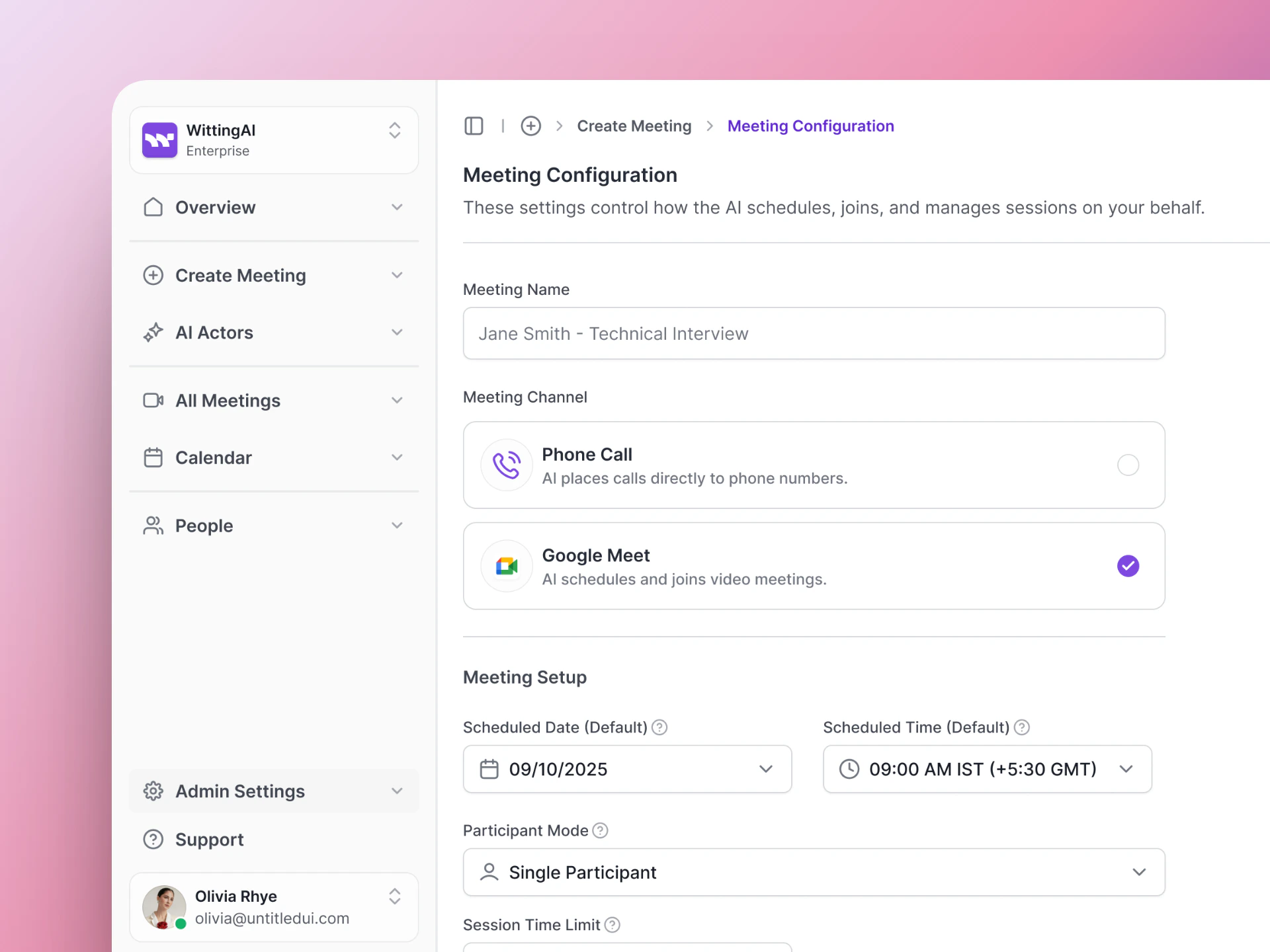
Set up the details of the meeting:
* **Meeting name** — A label for easy reference (e.g., "Jane Smith - Technical Interview").
* **Meeting Channel** — Choose **Google Meet** or **Phone Call**.
* **Date and time** — When the interview should happen.
* **Duration and settings** — Session length, how early the AI should join, and idle timeout.
If you have created variants (modified versions of the AI Actor), pick the one you want. If there are no variants, this step is skipped automatically.
Set up the details of the meeting:
* **Meeting name** — A label for easy reference (e.g., "Jane Smith - Technical Interview").
* **Meeting Channel** — Choose **Google Meet** or **Phone Call**.
* **Date and time** — When the interview should happen.
* **Duration and settings** — Session length, how early the AI should join, and idle timeout.
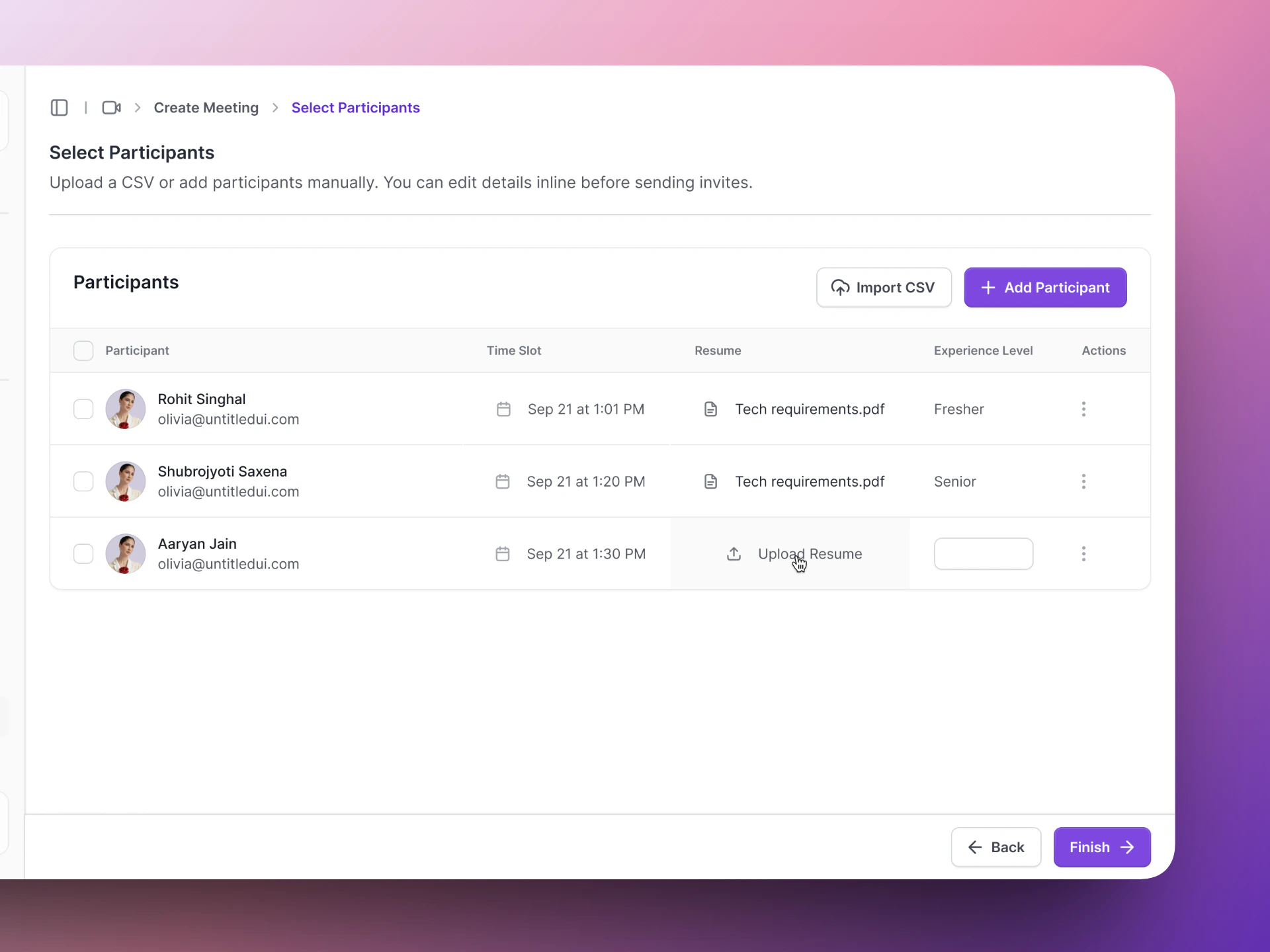
 Add the candidate(s) who will be interviewed. See [Participant Invites](/vocalis/how-to/participant-invites) for details on adding participants.
 Review all the details — Actor, variant, meeting configuration, and participants. Make sure everything looks right before scheduling.
Click **Schedule** to finalize. Vocalis creates the meeting and sends calendar invites to the participants. The AI Actor will join at the scheduled time.
## Meeting channels
| Channel | How it works | What you need |
| --------------- | ----------------------------------------------------------------------------------------------------- | --------------------------------------------------------- |
| **Google Meet** | AI Actor joins a video call as a real participant. Candidate gets a calendar invite with a Meet link. | [Google Workspace setup](/vocalis/setup/google-workspace) |
| **Phone Call** | AI Actor calls the candidate's phone number at the scheduled time. | [Twilio setup](/vocalis/setup/twilio) |
## Meeting statuses
Track your meetings from the **Calendar** page in the sidebar.
| Status | What it means |
| --------------- | ------------------------------------------------------- |
| **Scheduled** | Meeting is set up and waiting for the scheduled time. |
| **In Progress** | The AI Actor has joined and the interview is happening. |
| **Completed** | The interview is done and results are available. |
| **Cancelled** | The meeting was cancelled before it started. |
## Next steps
Learn how to add candidates to meetings.
Review results after the interview.
Review all the details — Actor, variant, meeting configuration, and participants. Make sure everything looks right before scheduling.
Click **Schedule** to finalize. Vocalis creates the meeting and sends calendar invites to the participants. The AI Actor will join at the scheduled time.
## Meeting channels
| Channel | How it works | What you need |
| --------------- | ----------------------------------------------------------------------------------------------------- | --------------------------------------------------------- |
| **Google Meet** | AI Actor joins a video call as a real participant. Candidate gets a calendar invite with a Meet link. | [Google Workspace setup](/vocalis/setup/google-workspace) |
| **Phone Call** | AI Actor calls the candidate's phone number at the scheduled time. | [Twilio setup](/vocalis/setup/twilio) |
## Meeting statuses
Track your meetings from the **Calendar** page in the sidebar.
| Status | What it means |
| --------------- | ------------------------------------------------------- |
| **Scheduled** | Meeting is set up and waiting for the scheduled time. |
| **In Progress** | The AI Actor has joined and the interview is happening. |
| **Completed** | The interview is done and results are available. |
| **Cancelled** | The meeting was cancelled before it started. |
## Next steps
Learn how to add candidates to meetings.
Review results after the interview.