> ## Documentation Index
> Fetch the complete documentation index at: https://docs.witting.ai/llms.txt
> Use this file to discover all available pages before exploring further.
# Vocalis Key Concepts
> Core terminology and building blocks in Vocalis — AI Actors, Variants, Meetings, Meeting Channels, Insights, and more. Understand the platform before you start.
Here are the key terms you will see throughout Vocalis. Understanding these will help you get the most out of the platform.
## AI Actor
An **AI Actor** is an autonomous AI voice agent that conducts conversations on your behalf. Each AI Actor is set up for a specific type of conversation — a technical interview, a culture fit assessment, a reference check, or anything that follows a structured pattern. When you open **AI Actors** in the sidebar, you see your library of all configured agents.
Business users create AI Actors in plain English. No developers, no code, no flow builders.
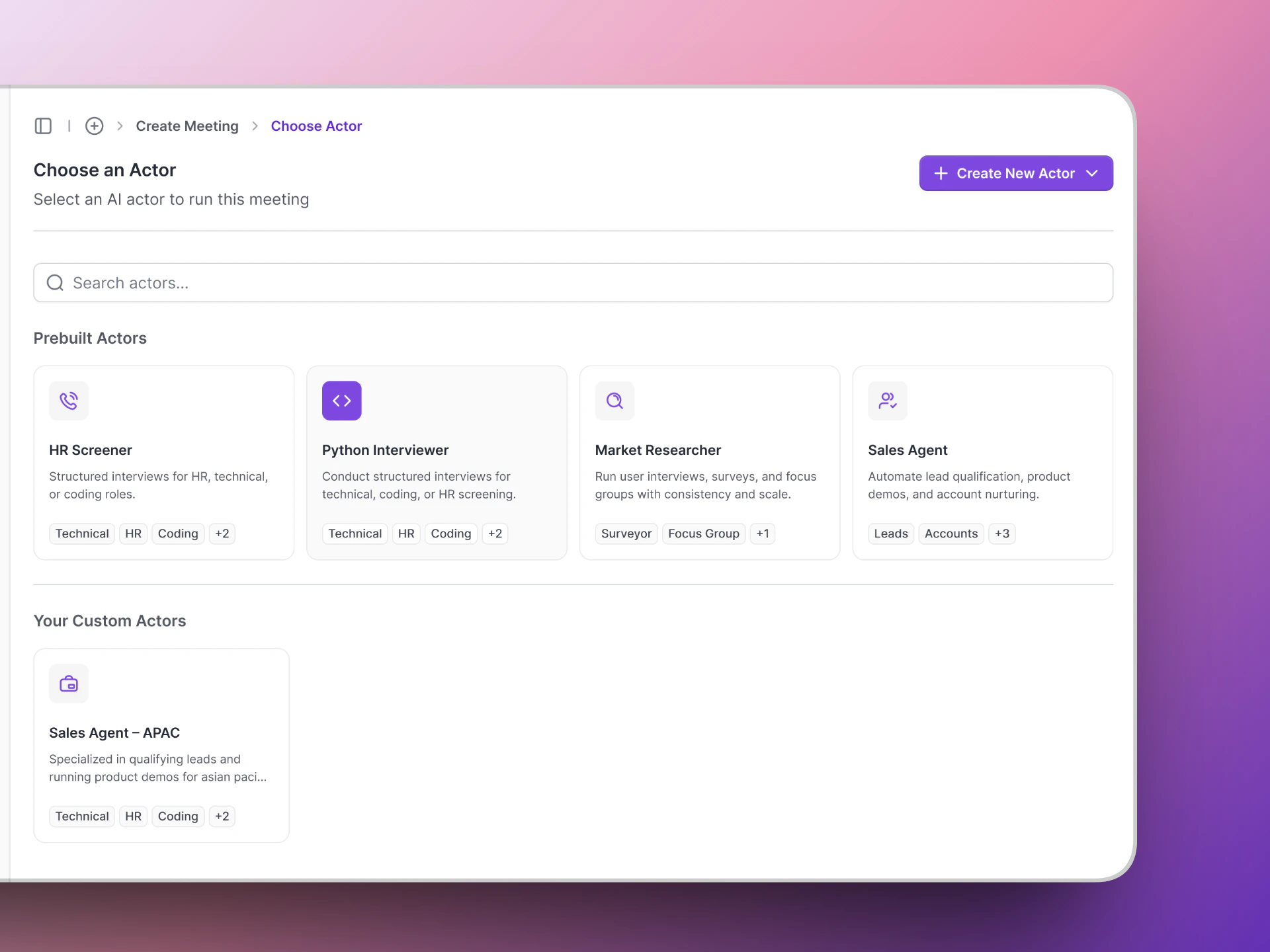 Every AI Actor has four parts (matching the four setup steps):
| Part | What it is |
| ------------ | ---------------------------------------------------------------------------------------------------------- |
| **Actor** | The name, voice, and conversational style — how the AI sounds and presents itself. |
| **Purpose** | The instructions that tell the AI what to do — what questions to ask, how to behave, and what to evaluate. |
| **Insights** | The specific data points to extract from the conversation — scores, key answers, ratings, etc. |
| **Reports** | How the results are packaged and summarized after the call. |
You can create multiple AI Actors for different conversation types — interview stages, sales calls, feedback sessions, or any structured conversation at scale.
## Variant
A **Variant** is a modified version of an existing AI Actor. Think of it as a copy with tweaks — for example, the same screening questions but with a more formal tone, or a different language.
Variants save you time when you need slight variations of the same interview. Instead of building a new AI Actor from scratch, you create a variant from the original.
When creating a meeting, the **Choose Variant** step lets you pick which version of the AI Actor to use.
## Meeting
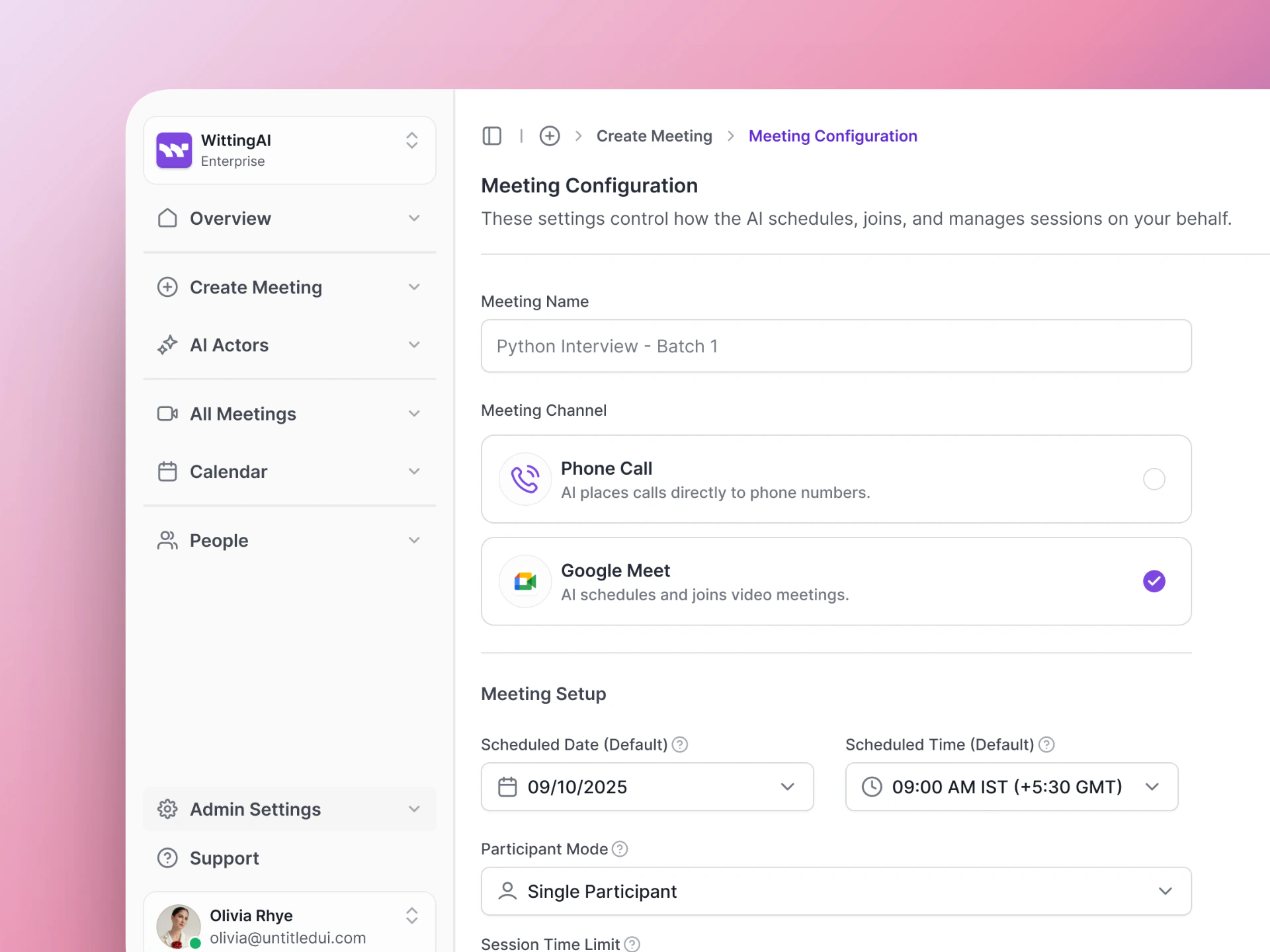
A **Meeting** is a scheduled interview session between a candidate and an AI Actor. When you create a meeting, Vocalis:
1. Sets up the call — either a Google Meet link or a phone call.
2. Schedules the AI Actor to join at the right time.
3. Tracks the meeting through its lifecycle (scheduled → in progress → completed).
After the meeting ends, Vocalis attaches the transcript, insights, and assessment to the meeting record. You can view completed meetings from the **Calendar** page.
## Meeting Channel
The **Meeting Channel** is how the interview is delivered. Vocalis supports two channels:
| Channel | How it works |
| --------------- | ------------------------------------------------------------------------------------------------------------------------------------------------------ |
| **Google Meet** | The AI Actor joins a video call as a real participant. The other person gets a calendar invite with a Meet link. No other voice AI platform does this. |
| **Phone Call** | The AI Actor calls the person's phone number via Twilio. |
You choose the meeting channel when creating a meeting.
Every AI Actor has four parts (matching the four setup steps):
| Part | What it is |
| ------------ | ---------------------------------------------------------------------------------------------------------- |
| **Actor** | The name, voice, and conversational style — how the AI sounds and presents itself. |
| **Purpose** | The instructions that tell the AI what to do — what questions to ask, how to behave, and what to evaluate. |
| **Insights** | The specific data points to extract from the conversation — scores, key answers, ratings, etc. |
| **Reports** | How the results are packaged and summarized after the call. |
You can create multiple AI Actors for different conversation types — interview stages, sales calls, feedback sessions, or any structured conversation at scale.
## Variant
A **Variant** is a modified version of an existing AI Actor. Think of it as a copy with tweaks — for example, the same screening questions but with a more formal tone, or a different language.
Variants save you time when you need slight variations of the same interview. Instead of building a new AI Actor from scratch, you create a variant from the original.
When creating a meeting, the **Choose Variant** step lets you pick which version of the AI Actor to use.
## Meeting
A **Meeting** is a scheduled interview session between a candidate and an AI Actor. When you create a meeting, Vocalis:
1. Sets up the call — either a Google Meet link or a phone call.
2. Schedules the AI Actor to join at the right time.
3. Tracks the meeting through its lifecycle (scheduled → in progress → completed).
After the meeting ends, Vocalis attaches the transcript, insights, and assessment to the meeting record. You can view completed meetings from the **Calendar** page.
## Meeting Channel
The **Meeting Channel** is how the interview is delivered. Vocalis supports two channels:
| Channel | How it works |
| --------------- | ------------------------------------------------------------------------------------------------------------------------------------------------------ |
| **Google Meet** | The AI Actor joins a video call as a real participant. The other person gets a calendar invite with a Meet link. No other voice AI platform does this. |
| **Phone Call** | The AI Actor calls the person's phone number via Twilio. |
You choose the meeting channel when creating a meeting.
 ## Insights
**Insights** are the structured data points that Vocalis extracts from each conversation. Instead of just giving you a raw transcript, the AI Actor pulls out the specific information you care about.
Examples of insights:
| Insight | Type | Example value |
| ---------------------- | ----- | -------------------- |
| Years of experience | Score | 5 |
| Salary expectations | Text | "\$120,000" |
| Available start date | Text | "March 15, 2026" |
| Technical skills | Text | "Python, React, AWS" |
| Overall recommendation | Text | "Strong yes" |
| Communication rating | Score | 4 out of 5 |
Insights turn unstructured conversation into clear, comparable, decision-ready data. You define exactly what to extract, and every conversation produces consistent, structured output — not generic summaries.
## Client
A **Client** is your organization in Vocalis. Your client account holds all your AI Actors, meetings, users, and settings. Each client configures their own integrations (Google Workspace, Twilio, OpenAI).
## User
A **User** is someone on your team who has access to the Vocalis dashboard. Users can create AI Actors, set up meetings, and review interview results.
## Participant
A **Participant** is the person in the conversation — a job candidate, a lead, a reference, or anyone the AI Actor is talking to. When you create a meeting, you add participants in the **Select Participants** step.
## Next steps
Put these concepts into practice.
See how these concepts apply to hiring.
## Insights
**Insights** are the structured data points that Vocalis extracts from each conversation. Instead of just giving you a raw transcript, the AI Actor pulls out the specific information you care about.
Examples of insights:
| Insight | Type | Example value |
| ---------------------- | ----- | -------------------- |
| Years of experience | Score | 5 |
| Salary expectations | Text | "\$120,000" |
| Available start date | Text | "March 15, 2026" |
| Technical skills | Text | "Python, React, AWS" |
| Overall recommendation | Text | "Strong yes" |
| Communication rating | Score | 4 out of 5 |
Insights turn unstructured conversation into clear, comparable, decision-ready data. You define exactly what to extract, and every conversation produces consistent, structured output — not generic summaries.
## Client
A **Client** is your organization in Vocalis. Your client account holds all your AI Actors, meetings, users, and settings. Each client configures their own integrations (Google Workspace, Twilio, OpenAI).
## User
A **User** is someone on your team who has access to the Vocalis dashboard. Users can create AI Actors, set up meetings, and review interview results.
## Participant
A **Participant** is the person in the conversation — a job candidate, a lead, a reference, or anyone the AI Actor is talking to. When you create a meeting, you add participants in the **Select Participants** step.
## Next steps
Put these concepts into practice.
See how these concepts apply to hiring.