

Prerequisites
Before you start, make sure you have:- A Vocalis account (sign up at vocalis.witting.ai)
- Google Workspace configured for Vocalis (setup guide)
Step 1: Log in to Vocalis
Go to vocalis.witting.ai and log in. You will land on the Dashboard.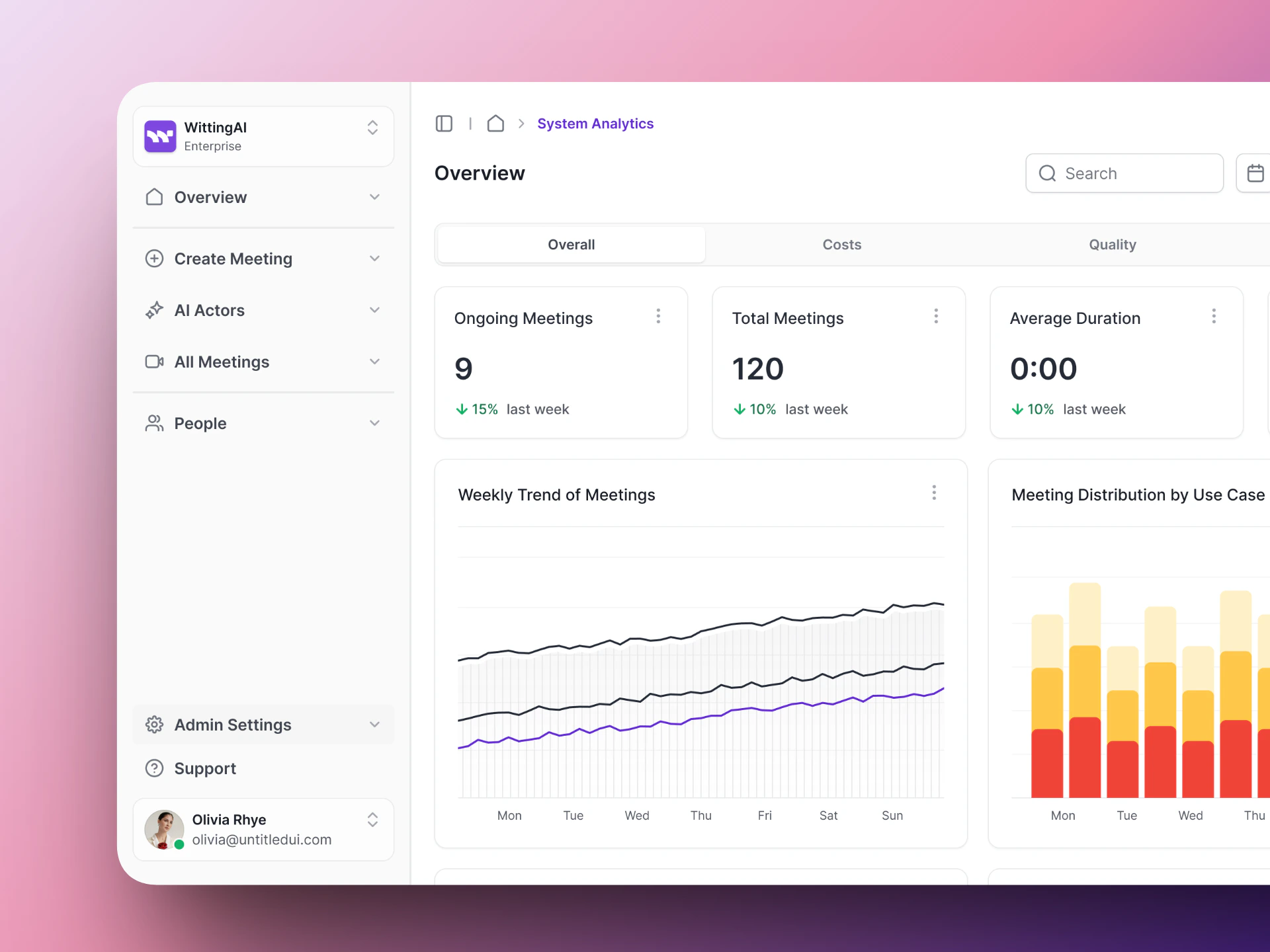
The Vocalis dashboard — your starting point.
Step 2: Create an AI Actor
Open AI Actors
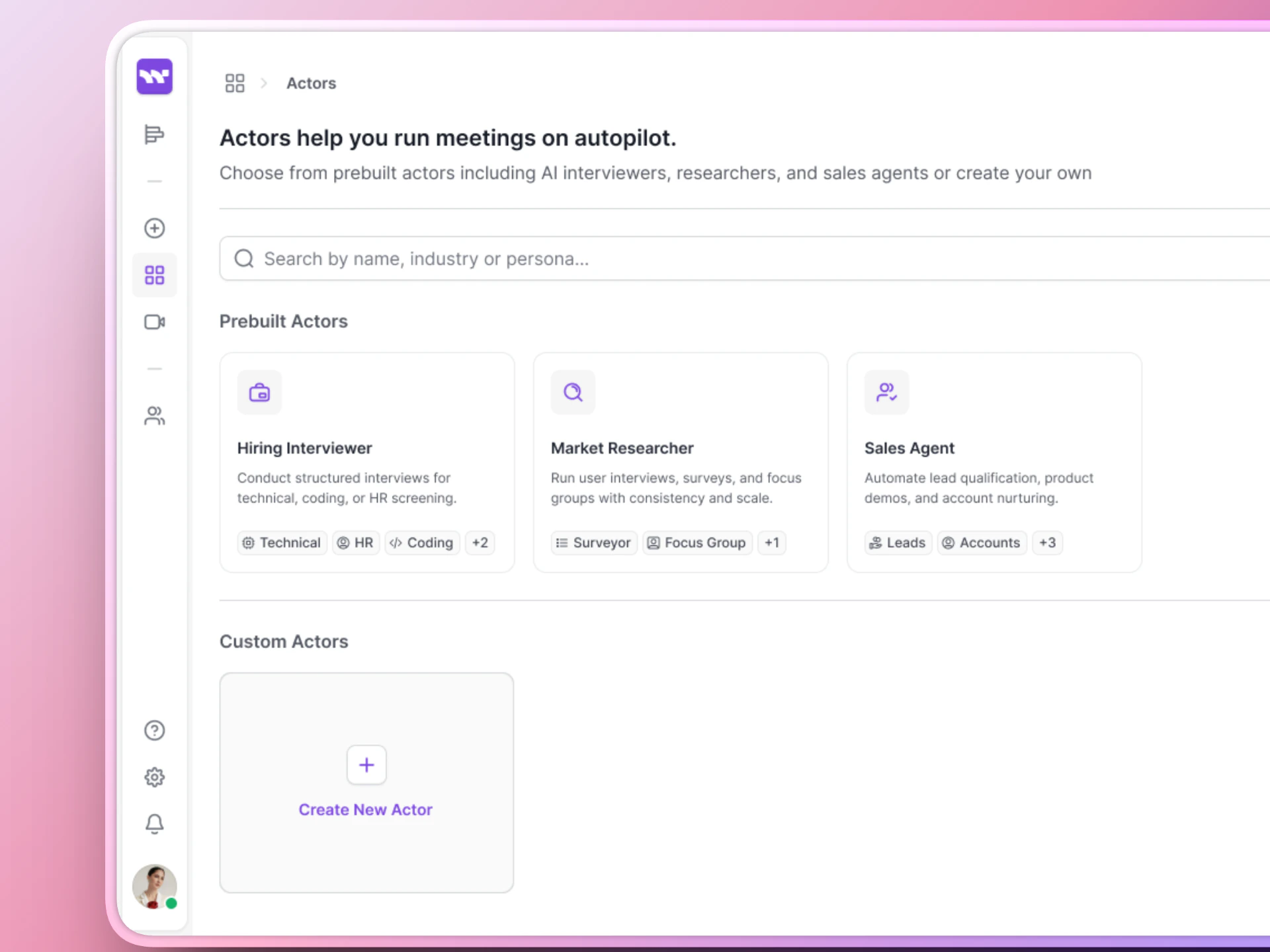
The AI Actors page shows your interviewers as cards.
Click Create Actor
Step 1 — Actor basics
- Name: A display name for your team (e.g., “Technical Interview - Software Engineer”)
- Voice: Pick the voice your AI Actor will speak with
- Conversational style: Set the tone and speaking speed
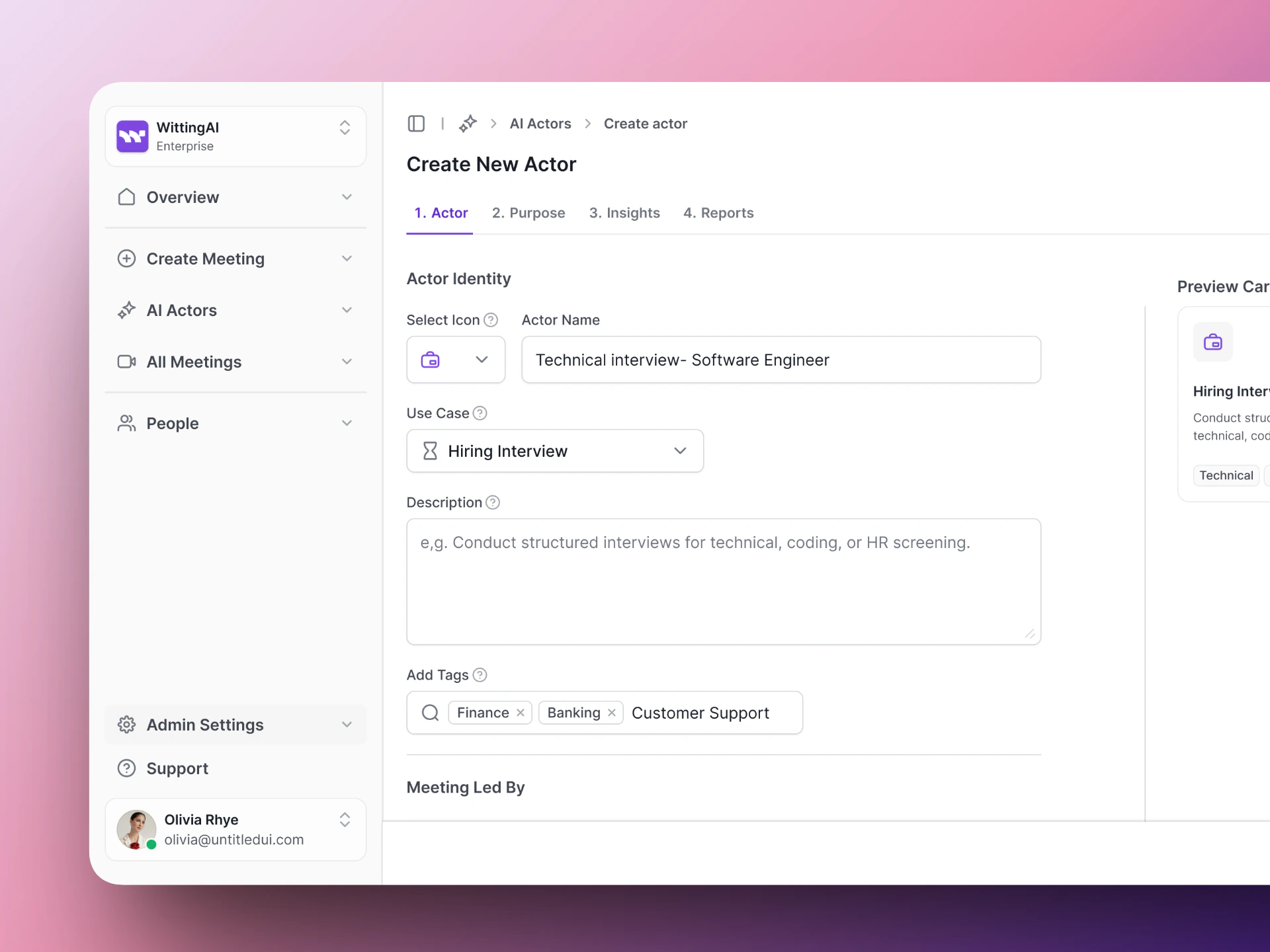
Step 1: Set up the Actor basics — name, voice, and style.
Step 2 — Purpose
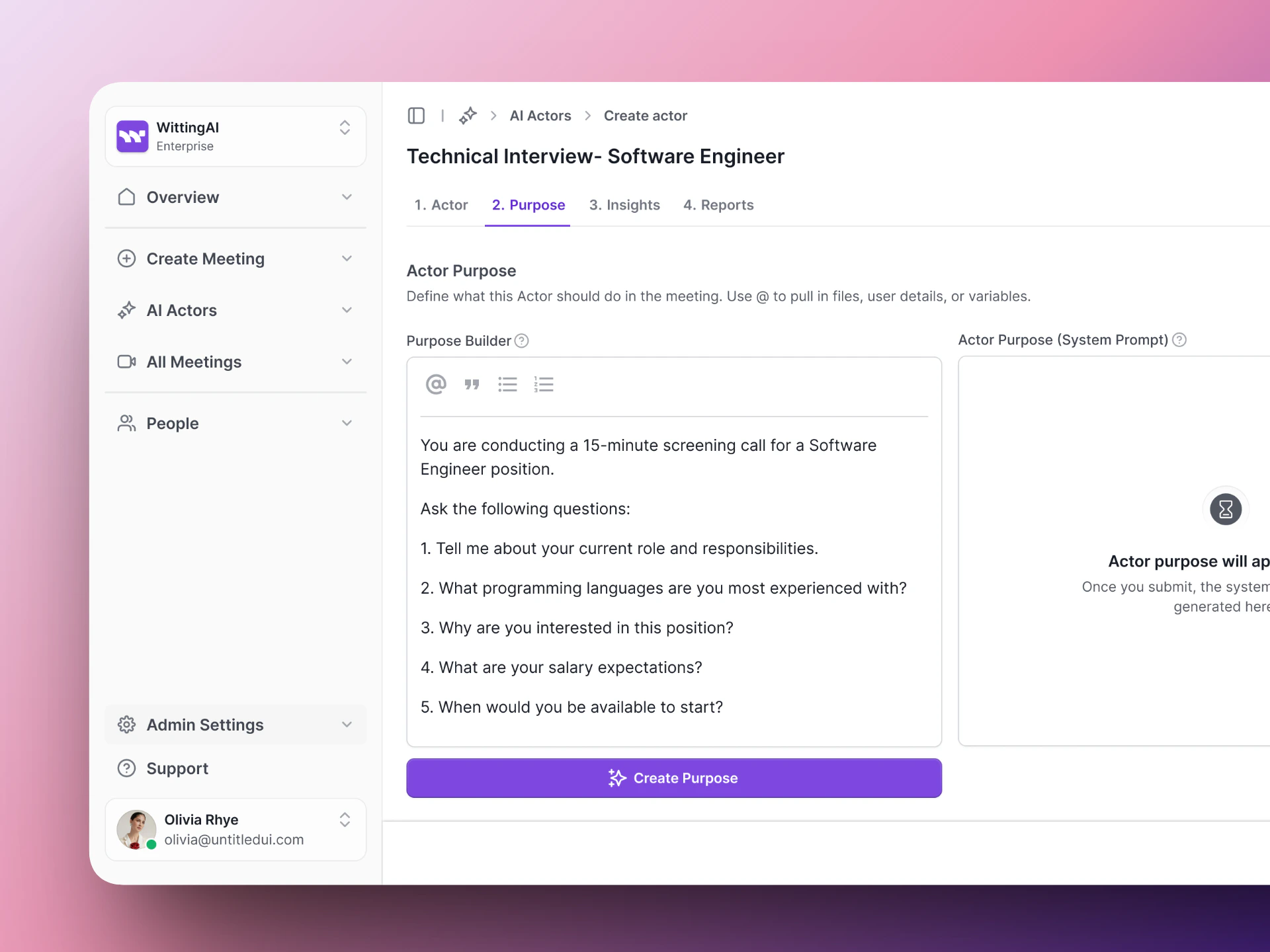
Step 2: Write the Purpose — what should the AI ask and how should it behave?
Step 3 — Insights
- “Current role” (text)
- “Primary languages” (text)
- “Salary expectations” (text)
- “Available start date” (text)
- “Overall recommendation” (score)
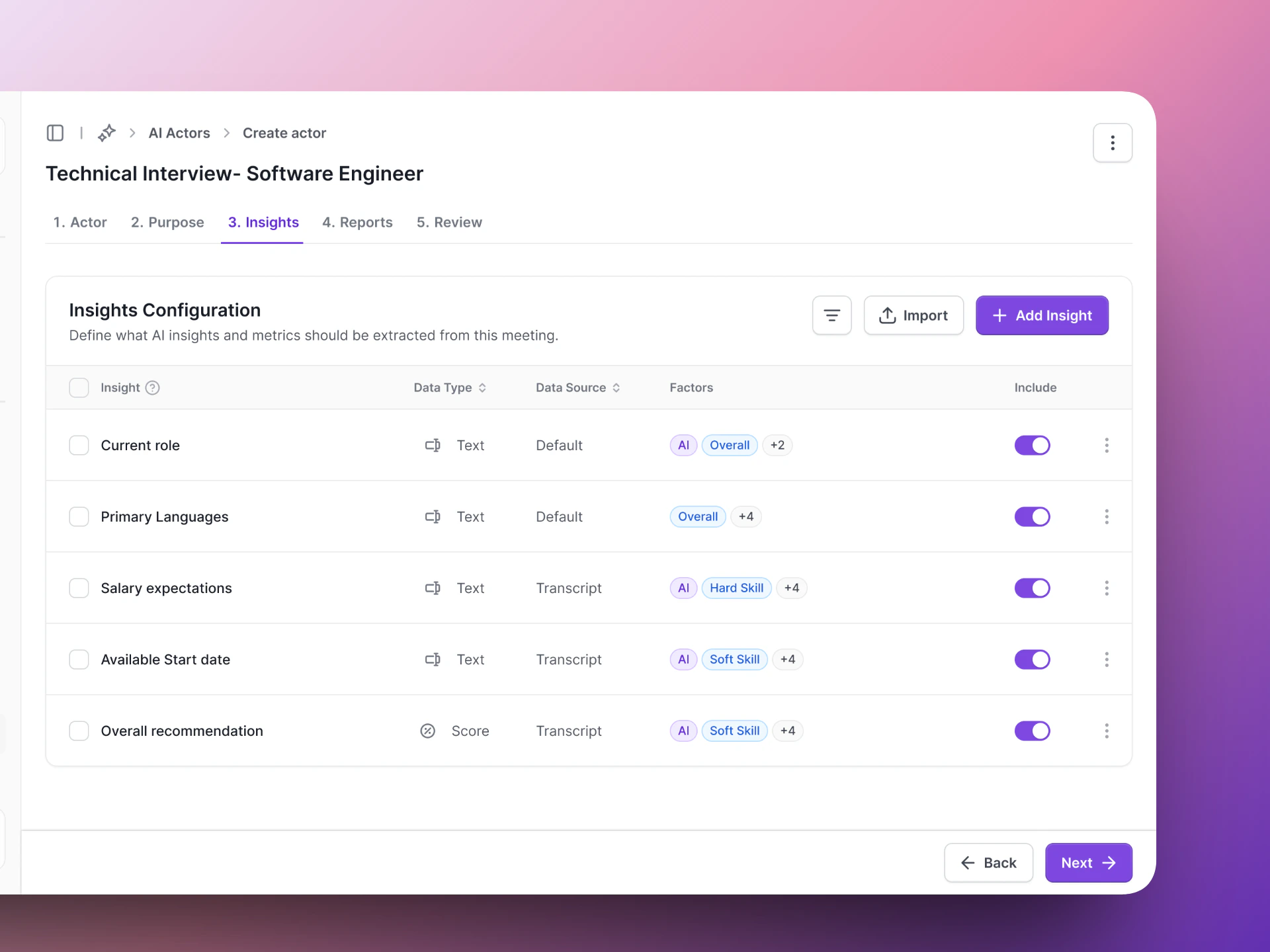
Step 3: Choose what insights to extract from each conversation.
Step 4 — Reports
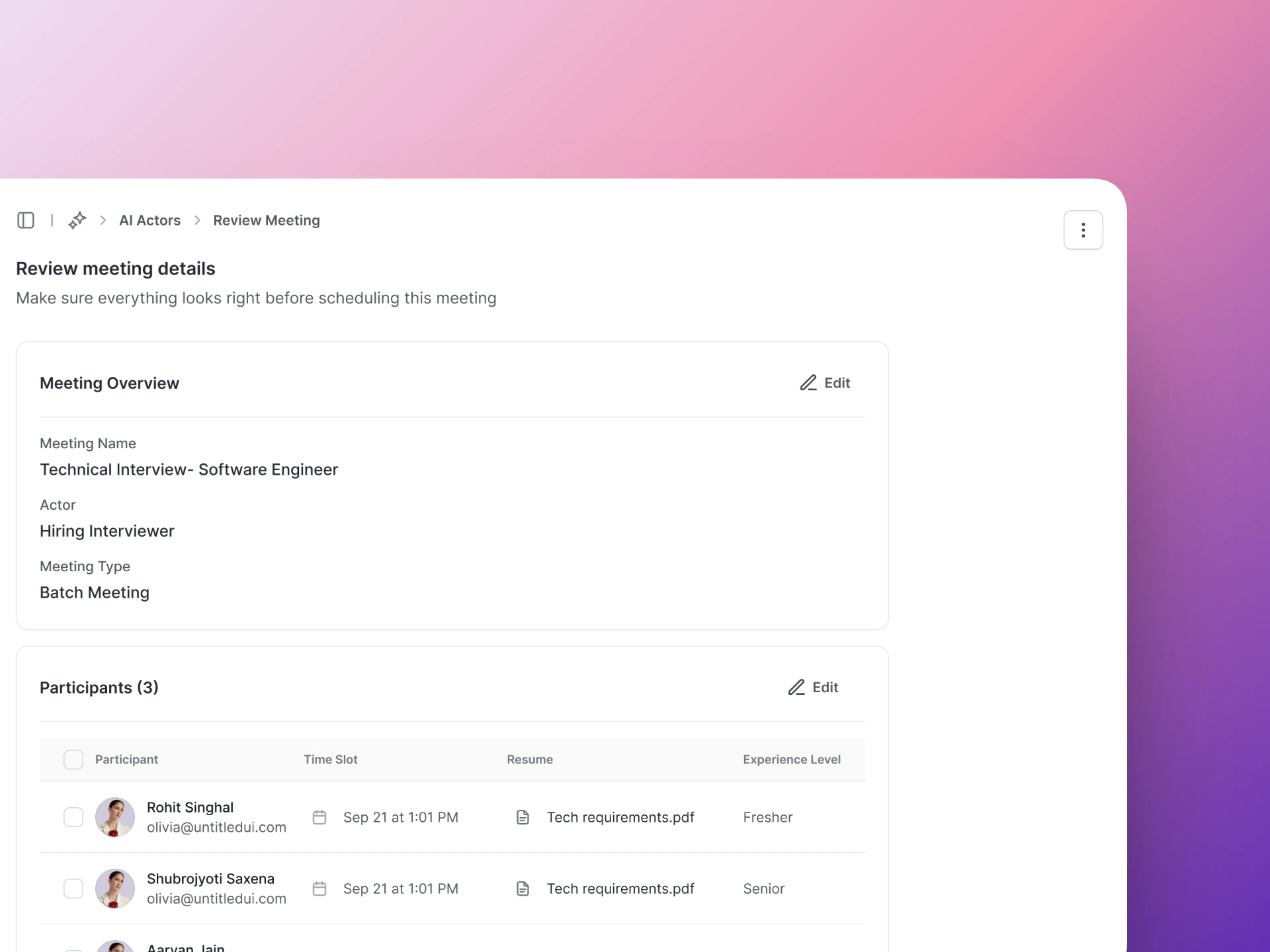
Step 4: Set up how results are reported.
Step 3: Create a meeting
Click Create Meeting
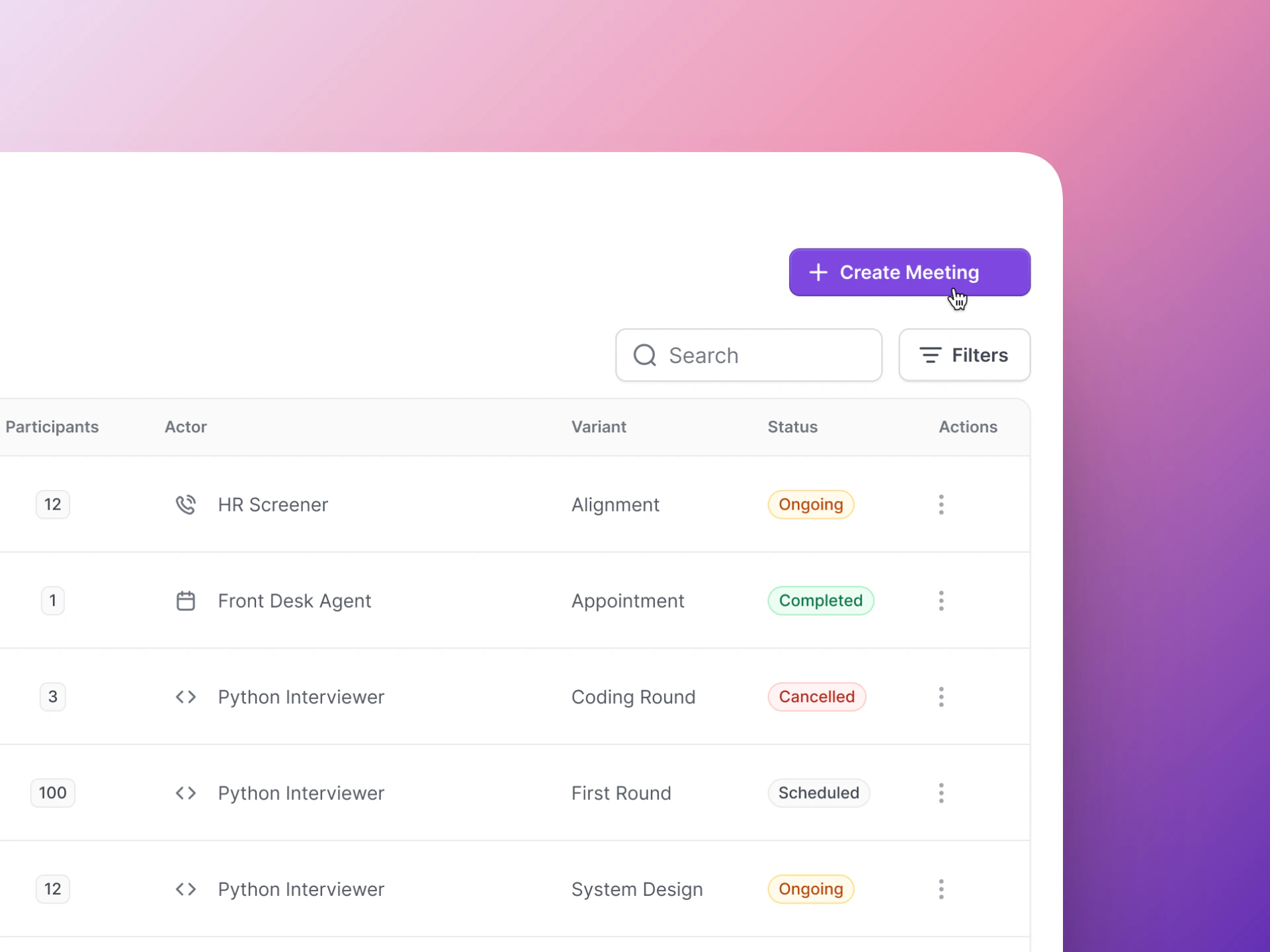
The Create Meeting button launches the meeting setup wizard.
Choose Variant
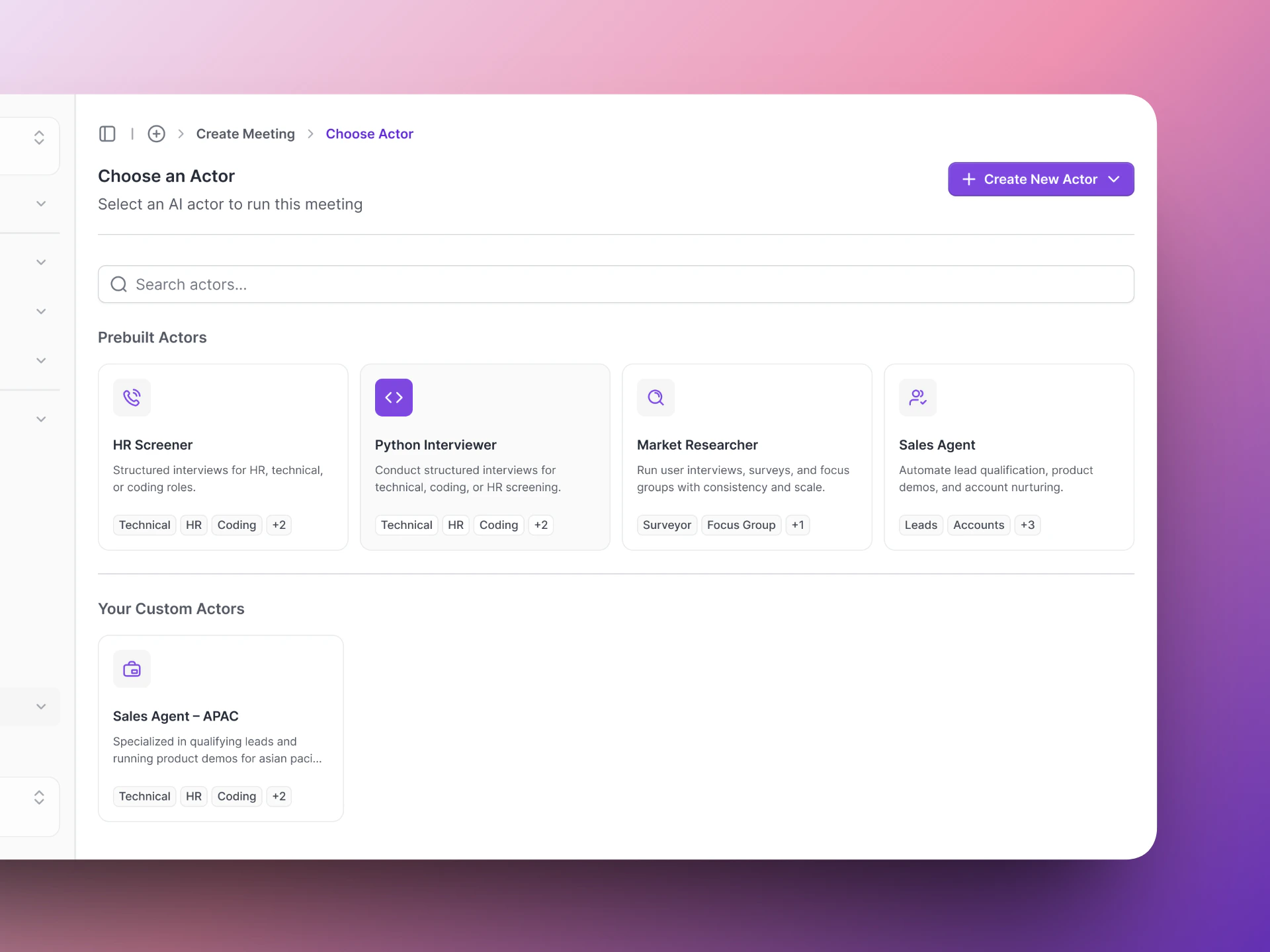
Step 1: Choose which AI Actor (or variant) will run this interview.
Meeting Configuration
- Meeting Channel: Choose Google Meet or Phone Call
- Date and time: When the interview should happen
- Meeting name: Give it a name for easy reference
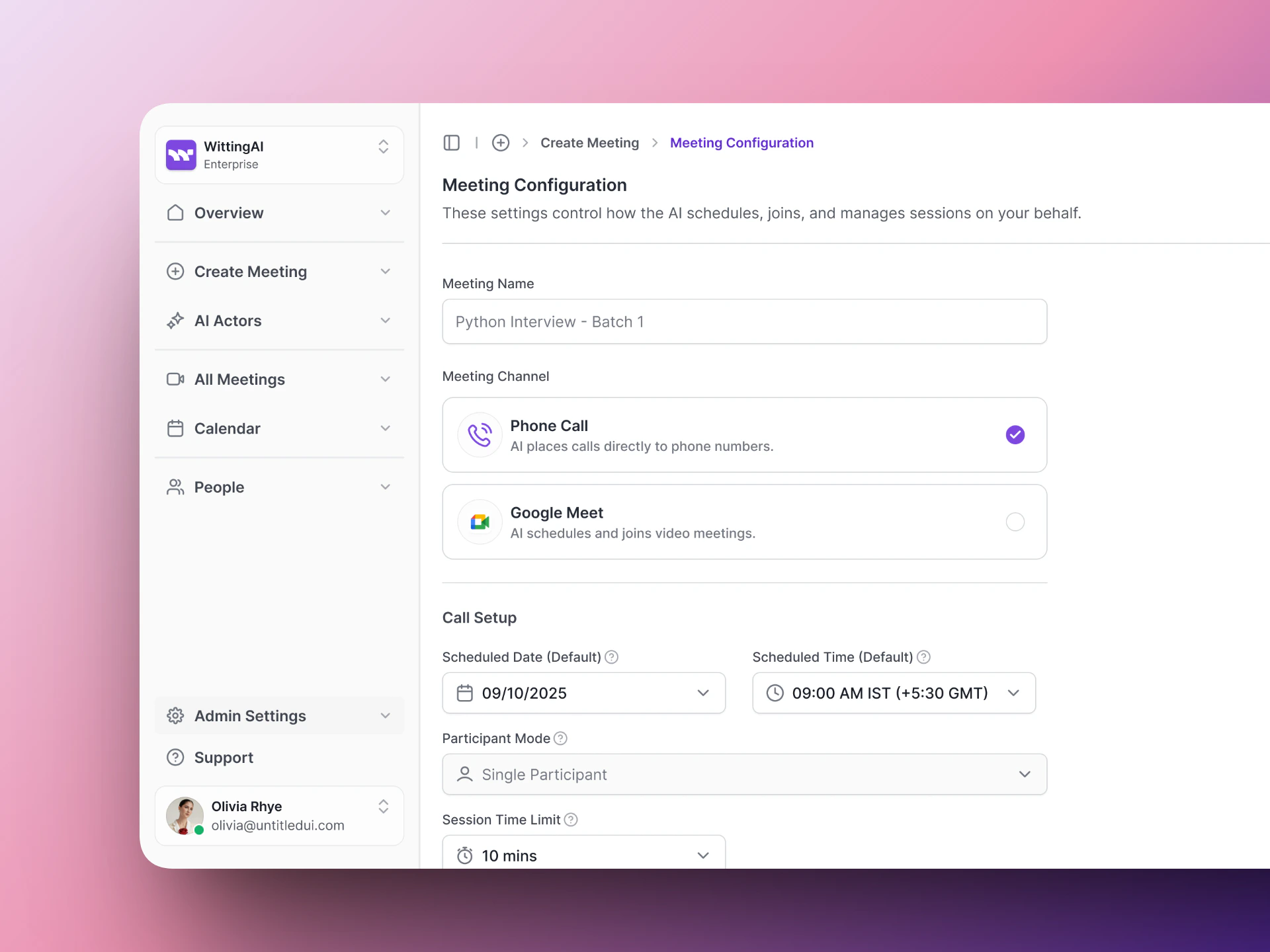
Step 2: Configure the meeting — channel, schedule, and settings.
Select Participants
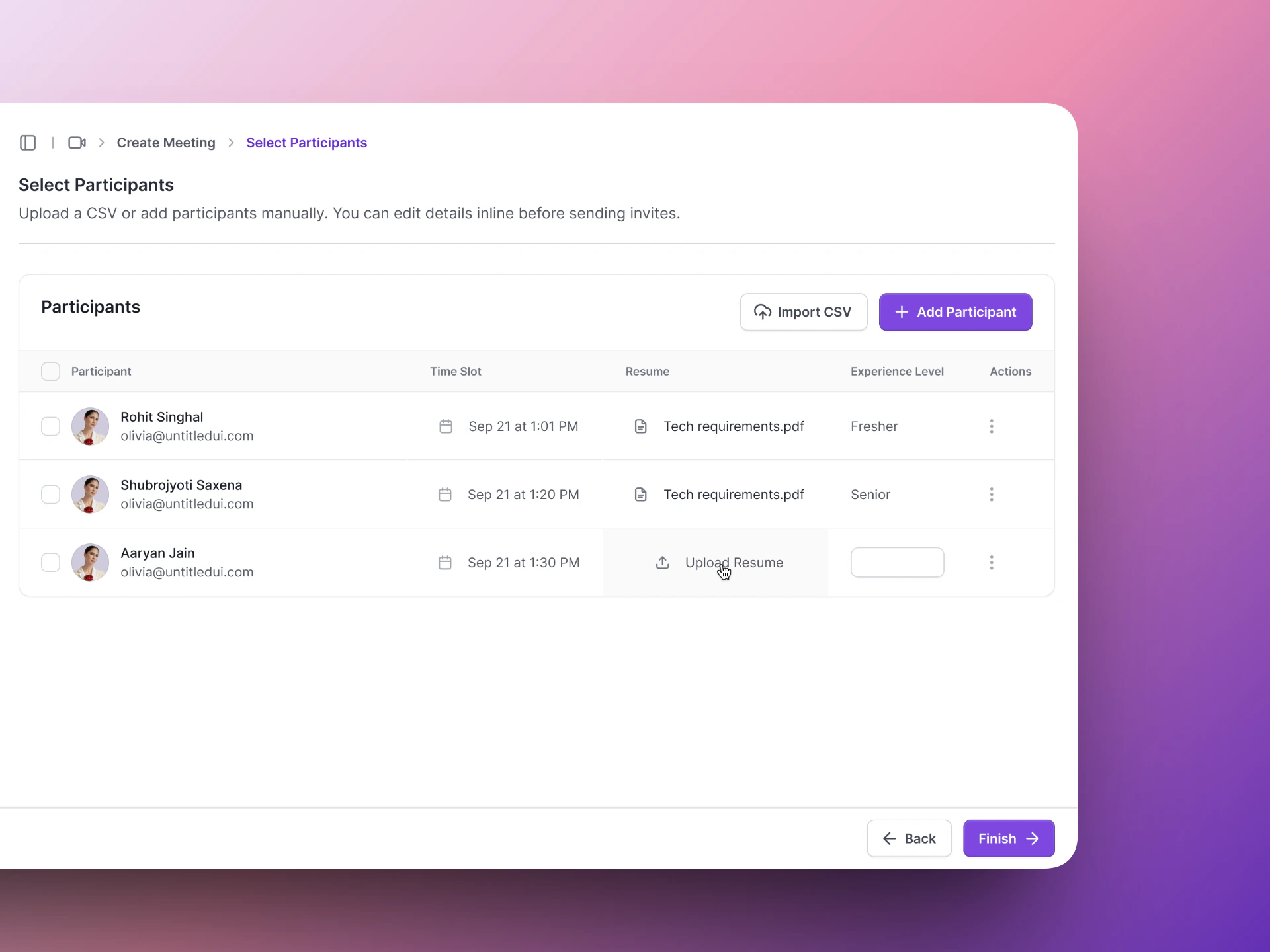
Step 3: Add the candidate(s) who will be interviewed.
Step 4: Review the results
After the meeting completes:- Go to Calendar in the left sidebar.
- Click the completed meeting.
- Review the transcript, insights, and assessment summary.
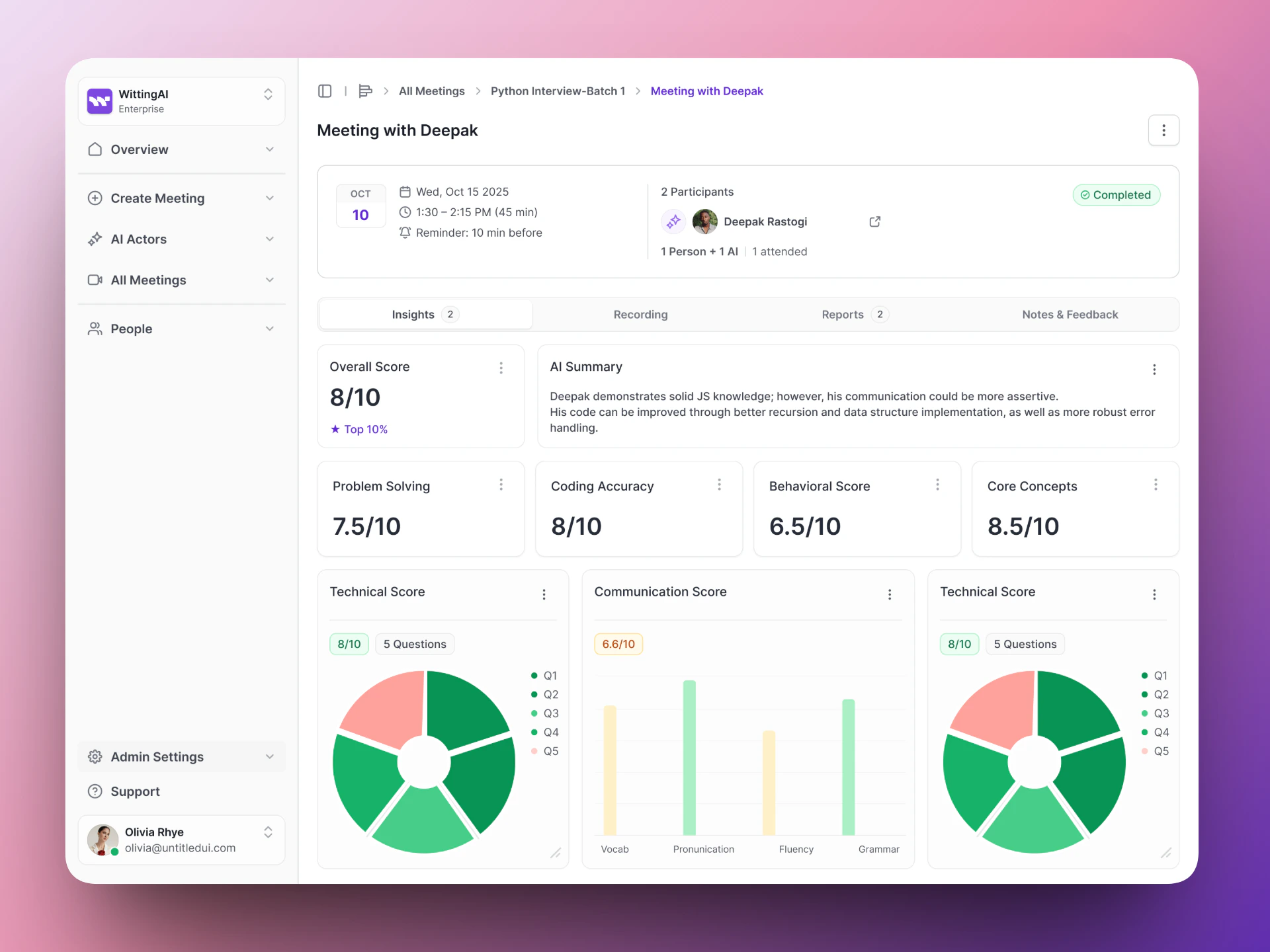
After the call, review the transcript, extracted insights, and overall assessment.