

Meeting channels
Vocalis supports two meeting channels:How to create a meeting
Click the Create Meeting button to open the meeting wizard. It walks you through three steps.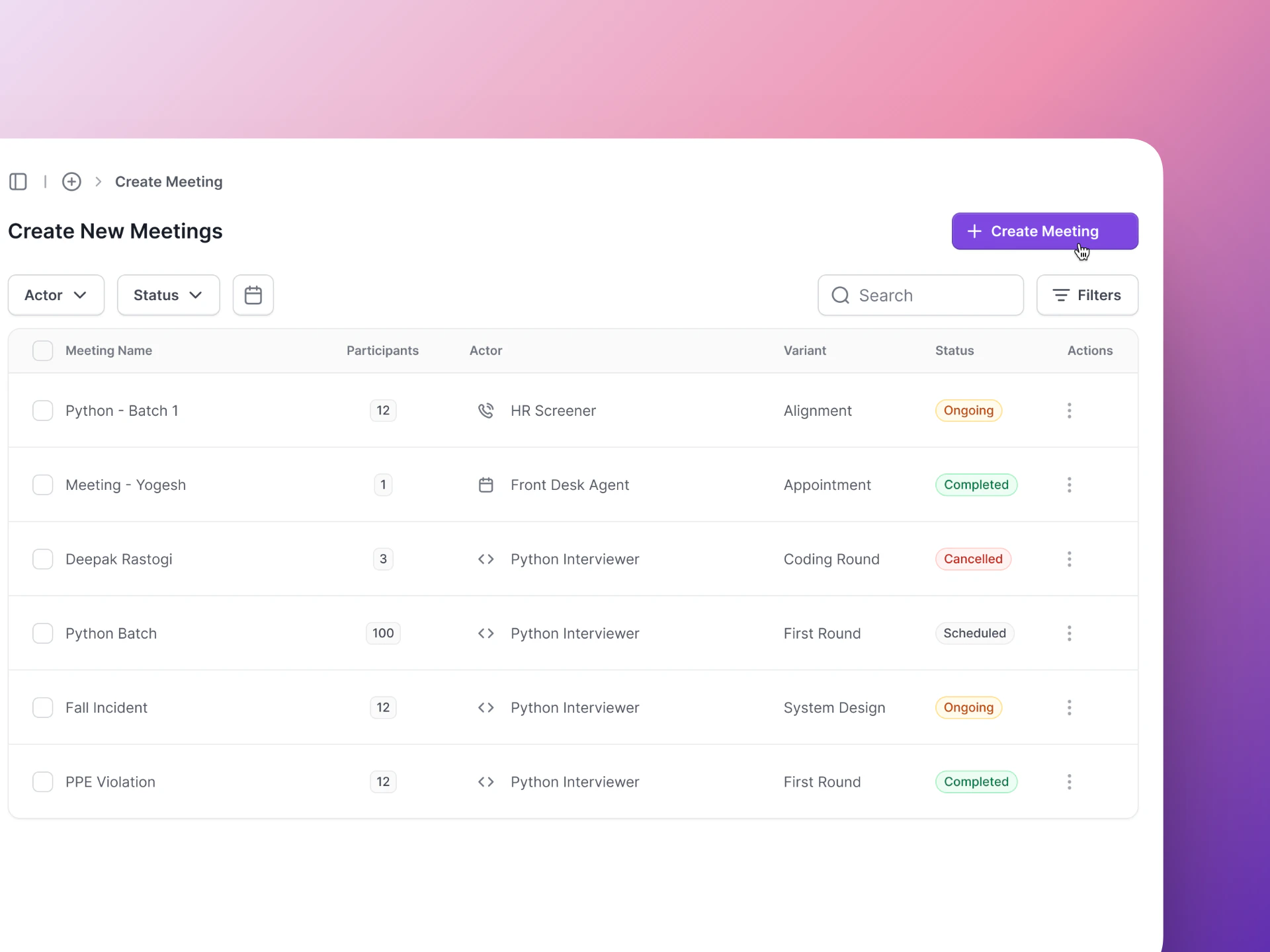
Click Create Meeting to start setting up an interview.
Step 1: Choose Variant
Pick the AI Actor that will run this interview. If you have created variants (modified versions of an AI Actor), you can select a specific variant here.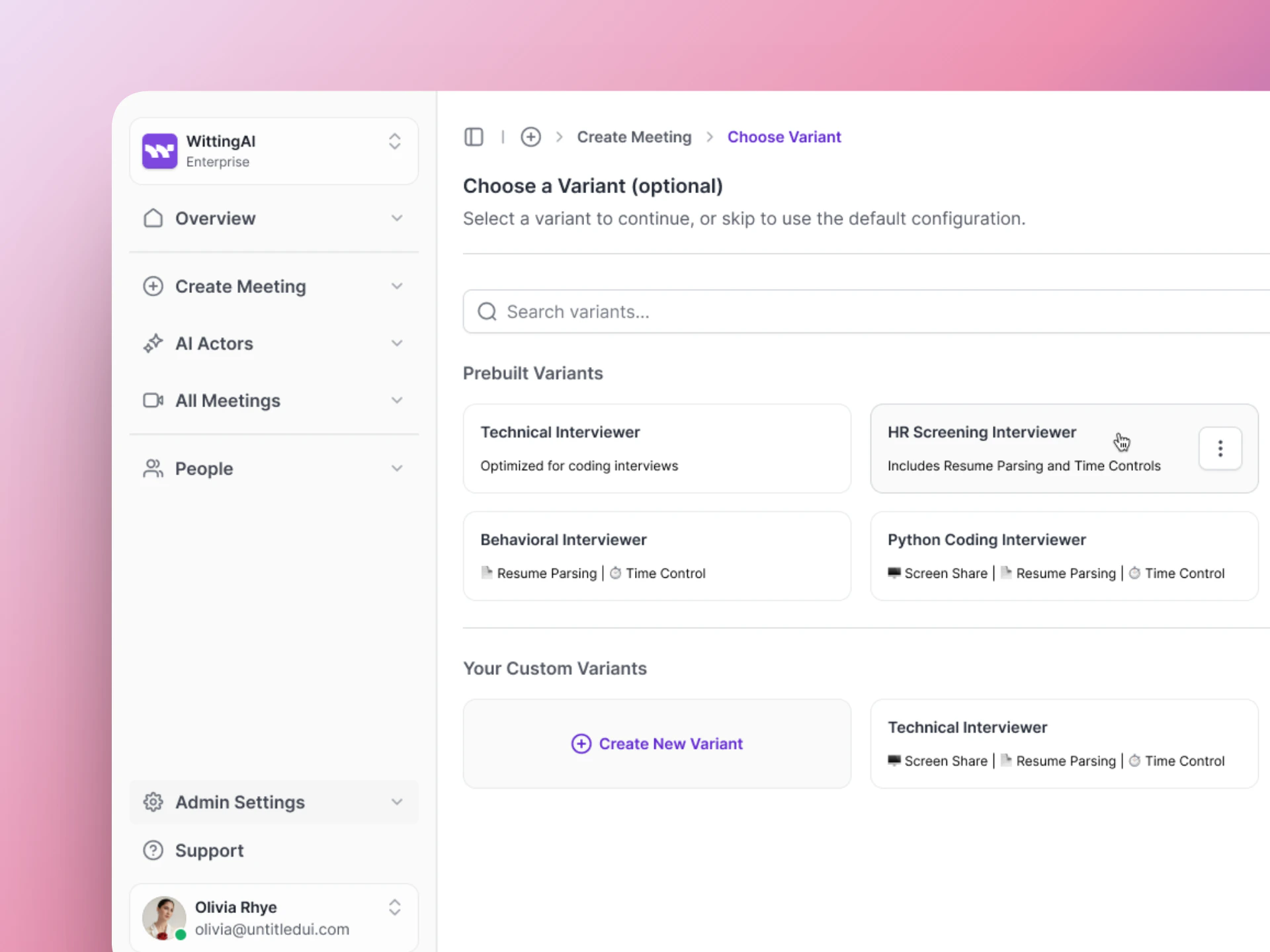
Step 1: Choose which AI Actor or variant will conduct the interview.
Step 2: Meeting Configuration
Set up the details of the meeting:- Meeting name — A label for easy reference (e.g., “Jane Smith - Technical Interview”)
- Meeting Channel — Choose Google Meet or Phone Call
- Date and time — When the interview should happen
- Duration and settings — Session length, how early the AI should join, and idle timeout
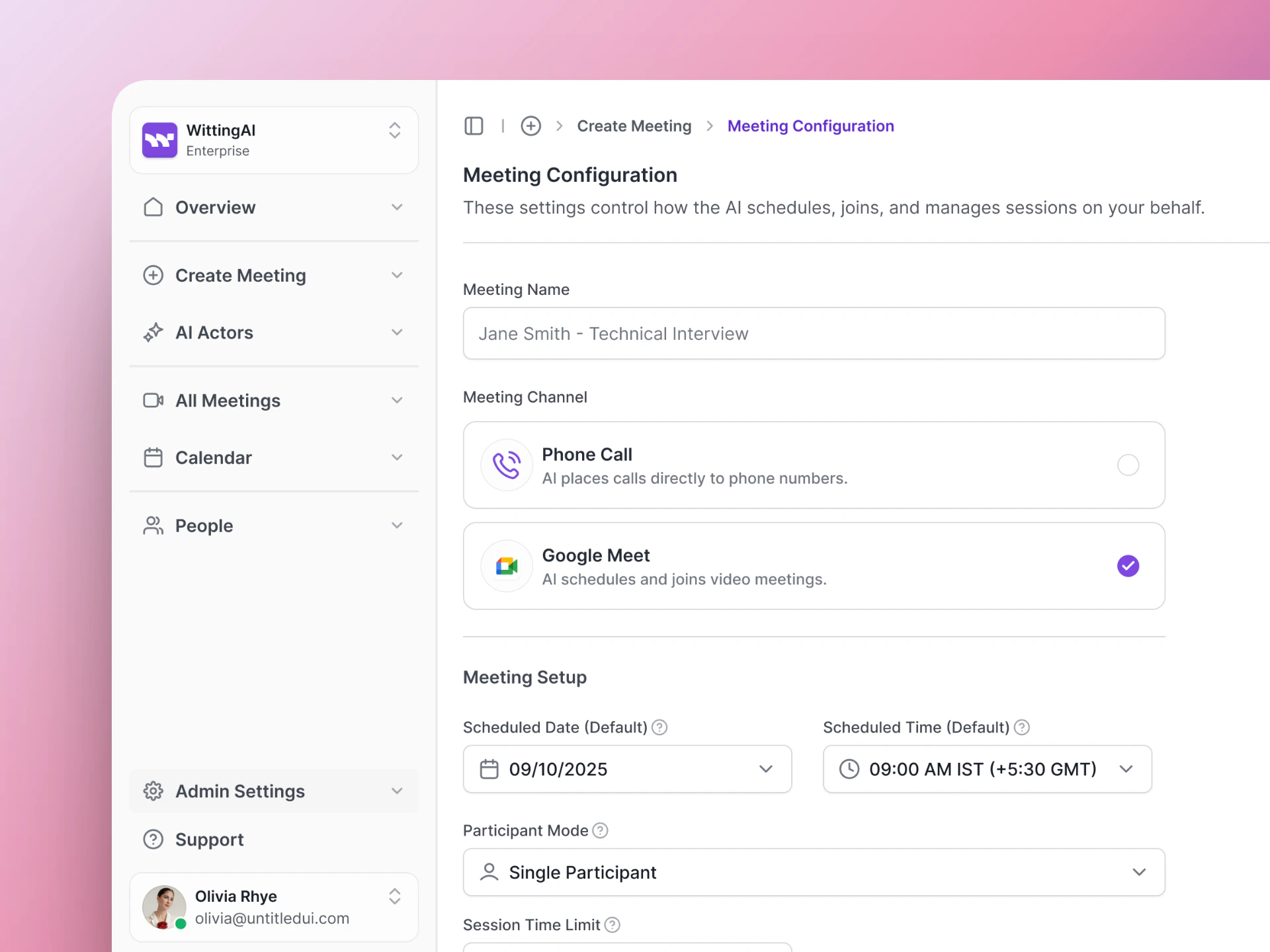
Step 2: Configure the meeting — name, channel, schedule, and settings.
Step 3: Select Participants
Add the candidate(s) who will be interviewed:- For Google Meet: Enter the candidate’s name and email address. Vocalis sends them a calendar invite with the Meet link.
- For Phone Call: Enter the candidate’s name and phone number. Vocalis calls them at the scheduled time.
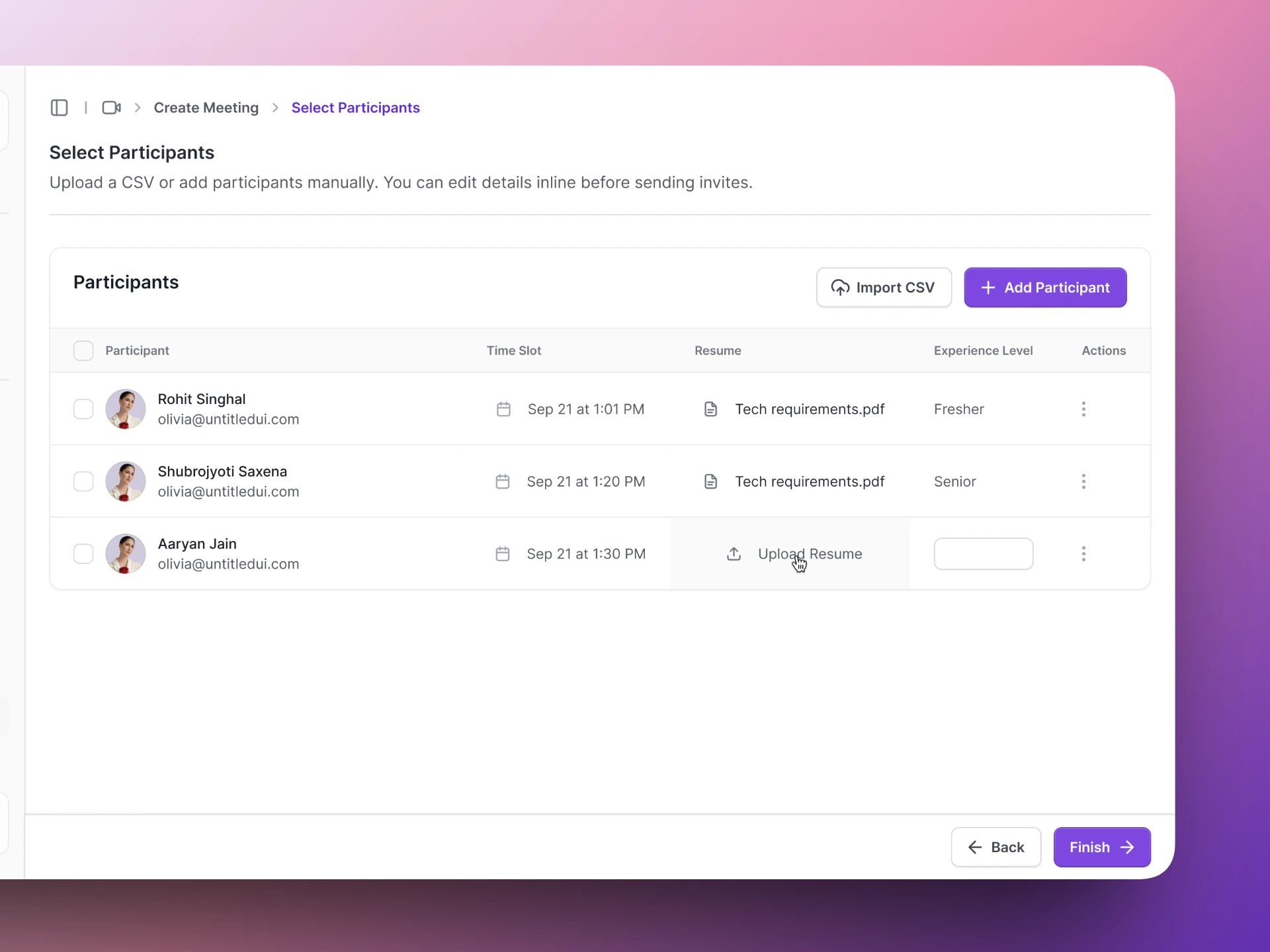
Step 3: Add the participants — name and contact details.
What happens during the call
1
Candidate joins
For Google Meet: the candidate clicks the Meet link from their calendar invite. The AI Actor is already waiting.For Phone Call: Vocalis calls the candidate at the scheduled time.
2
AI Actor introduces itself
The AI Actor greets the candidate, introduces itself by name and role, and explains what the call is about.
3
Interview runs
The AI Actor works through its questions, listens to answers, and asks follow-ups based on the conversation.
4
Call wraps up
When the interview is complete, the AI Actor thanks the candidate and ends the call.
5
Results are ready
Within minutes, the transcript, insights, and assessment appear in Vocalis.
Meeting statuses
You can track your meetings from the Calendar page in the sidebar.Reviewing results
After a meeting completes:- Go to Calendar in the left sidebar.
- Click the completed meeting.
- You will see:
- Transcript — The full conversation, word for word.
- Insights — Scores, key answers, and structured data extracted from what the candidate said.
- Assessment — An overall summary based on the evaluation criteria in the AI Actor’s Purpose.
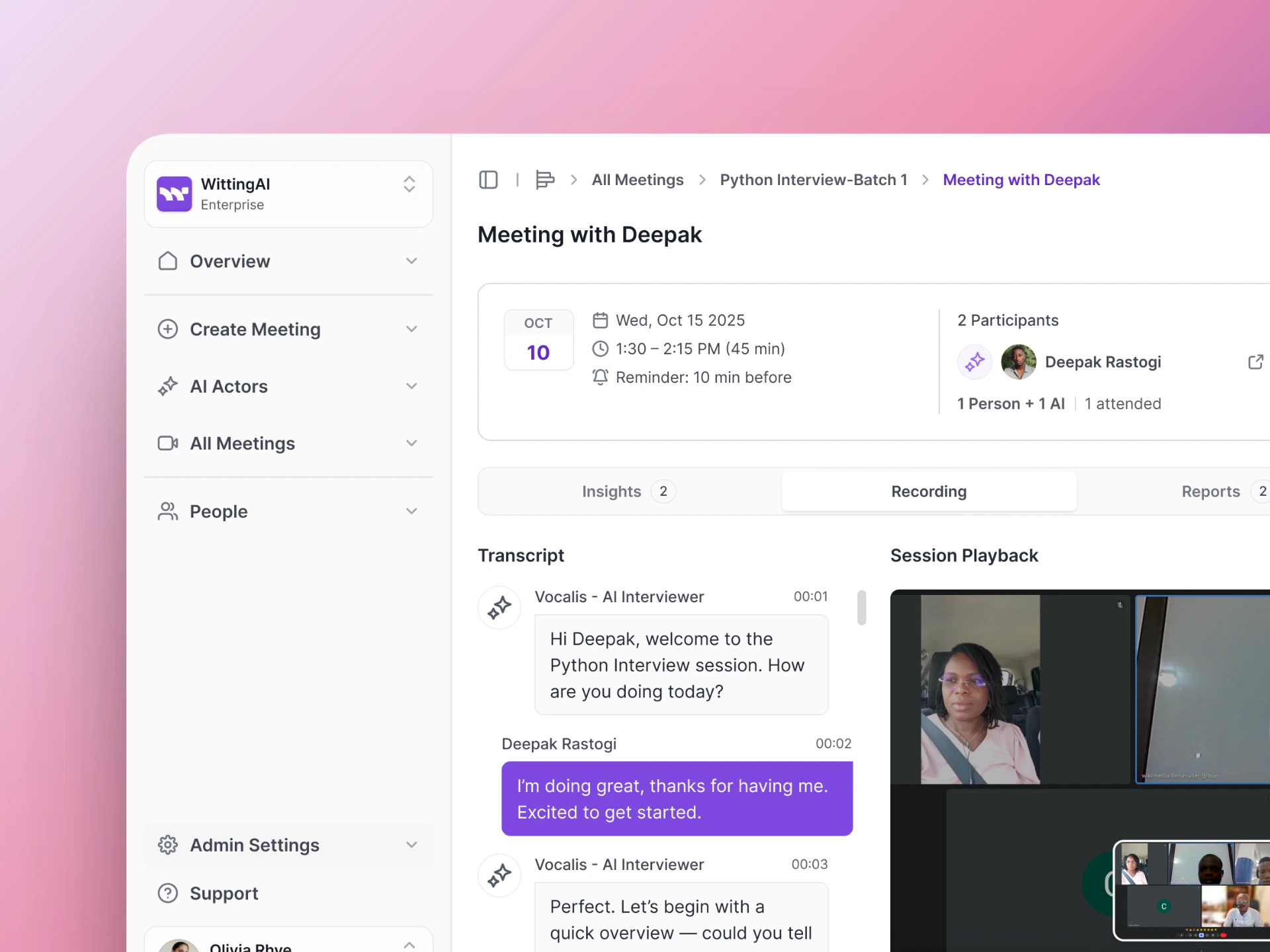
Review the transcript, extracted insights, and assessment for each completed meeting.
Next steps
Google Workspace Setup
Set up Google Meet integration.
HR Use Cases
See hiring-specific workflows.